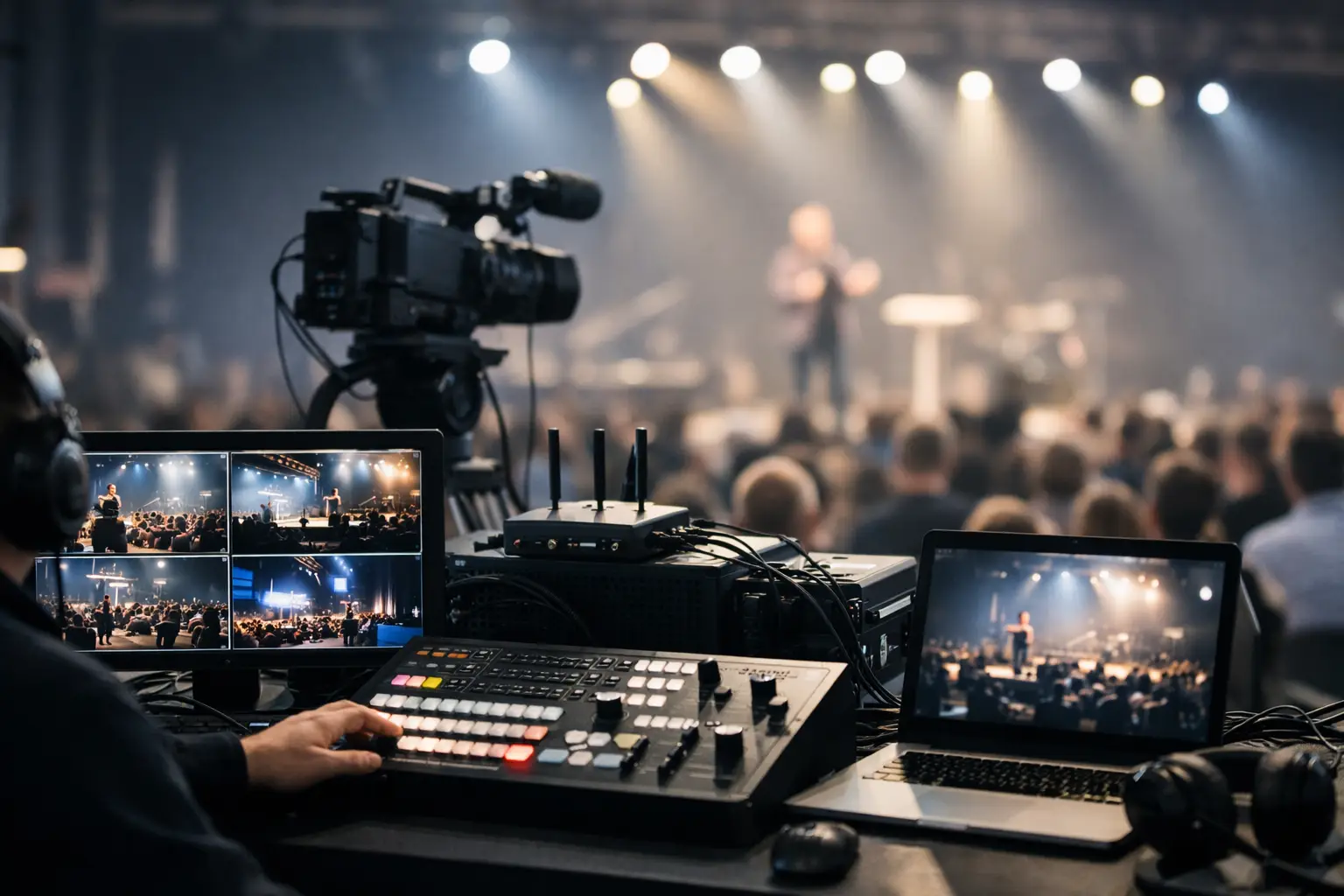
A packed room goes quiet when the match freezes. Within seconds, guests reach for their phones, staff start rebooting equipment, and the bar loses the energy it spent all day building. Knowing how to stabilize venue streaming is not about finding a better app five minutes before kickoff. It is about engineering the entire delivery path before demand arrives.
For Atlanta venues preparing for major sports traffic, streaming reliability is a revenue protection issue. The screen, the network, the broadcast source, and the response process all have to hold up under a full house. One weak point can turn a high-value match day into refunds, walkouts, and a customer experience people remember for the wrong reason.
Start with the real streaming path
Most venue teams diagnose the screen first. That is understandable, but it is often the wrong place to start. Video quality depends on a chain: the incoming internet connection, firewall and router performance, network switching, WiFi or wired transport, the streaming device, the display, and the streaming provider itself.
Map that path for every critical screen. Identify which screens are fed by a dedicated streaming device, which rely on a shared media player, and which are running over guest WiFi. Document the provider, account credentials, device location, Ethernet port, switch, and circuit serving each endpoint. If a manager cannot identify the path in under a minute, the venue is not ready for a live incident.
This exercise also exposes hidden dependencies. A single consumer-grade access point, an overloaded power strip, an unmanaged switch, or one shared streaming account can become the failure point that takes down multiple screens at once.
Separate streaming traffic from guest demand
A venue may have adequate internet bandwidth on a normal afternoon and still fail at kickoff. The reason is competition. Hundreds of guests connect phones, post video, use mobile payment systems, browse social media, and connect laptops. Staff devices, cameras, point-of-sale terminals, and digital signage are competing for the same resources.
Critical streaming devices should use wired Ethernet whenever the physical layout allows it. A wired connection removes radio interference, roaming behavior, and the unpredictable contention of a crowded wireless environment. It also makes troubleshooting faster because the device path is fixed and visible.
When WiFi is unavoidable, place streaming devices on a dedicated business network, separate from guest access. Use separate SSIDs and VLANs where the network supports them. Prioritize video and operational traffic with quality-of-service policies, while rate-limiting guest traffic so one heavily used device cannot consume disproportionate capacity.
Segmentation is not just an IT best practice. It protects the show. A guest network problem should not become a screen outage, and a compromised guest device should not have a path toward point-of-sale systems or media endpoints.
Size capacity for peak conditions, not quiet hours
A speed test taken at 10:00 a.m. does not prove a venue can stream at 7:45 p.m. on match day. Capacity planning must reflect the actual event environment: a full room, active guest WiFi, staff systems in use, live video on multiple endpoints, and simultaneous upload activity from guests and venue teams.
Calculate more than advertised download speed. Measure latency, jitter, packet loss, and sustained throughput during a realistic load test. High-definition streams may appear to use modest bandwidth individually, but several concurrent streams plus guest traffic can overwhelm a connection or expose weaknesses in the firewall, switch uplink, or WiFi design.
There is a trade-off. A small venue with one or two screens may not need enterprise hardware across the entire property. A sports bar with multiple rooms, patios, private event spaces, and hundreds of connected guests needs a different standard. The right design depends on screen count, occupancy, building layout, provider availability, and the cost of losing service during a major event.
Run a full-load rehearsal before the event window. Stream on the same devices that will be used live. Turn on the guest network. Run point-of-sale, music, cameras, and signage as usual. Then watch network performance for at least an hour. The goal is not to prove that video starts. The goal is to prove it remains stable when the building is active.
Build failover before you need it
One internet circuit is one point of failure. Construction damage, provider outages, equipment faults, and local service degradation can occur without warning. For high-stakes event operations, a secondary connection is a business continuity requirement.
A practical failover design may combine a primary fiber or cable circuit with a separate provider, fixed wireless option, or business-grade cellular connection. The key is independence. Two services that share the same building entry, local infrastructure, or provider backbone may fail together.
Automatic failover is preferable, but it must be tested. A backup connection that has never carried live traffic is not a plan. Confirm the firewall detects a meaningful outage, switches paths quickly, maintains required DNS and streaming access, and returns to the primary connection without creating repeated disconnects.
Also prepare a manual fallback. Keep a preconfigured backup streaming device, tested cables, a known-good Ethernet adapter, spare HDMI cables, and a documented hotspot process where appropriate. A hotspot is not a replacement for venue-grade redundancy, but it can keep one critical screen alive while engineers isolate a broader outage.
How to stabilize venue streaming at the device level
Even a healthy network cannot compensate for neglected streaming endpoints. Devices need maintenance, predictable settings, and physical protection.
Disable automatic operating system and app updates during event windows. Updates can trigger restarts, change permissions, sign users out, or alter video settings at exactly the wrong time. Apply updates during controlled maintenance periods, then test the stream again.
Use dedicated accounts for venue streaming rather than personal employee accounts. Confirm subscription status, multi-screen rights, login recovery methods, and any geographic or device authorization requirements before doors open. Keep credentials secure, but accessible to authorized operators through a documented process.
Set displays and streaming devices to stable resolutions supported by the entire signal chain. A 4K configuration can create unnecessary load or compatibility issues if the source, HDMI extender, splitter, or display is not consistently handling that format. For many crowded venues, reliable 1080p on every screen is more valuable than intermittent higher resolution.
Physical details matter. Secure power connections, ventilate media cabinets, label cables, and prevent guests or cleaning crews from reaching critical equipment. Overheating streaming sticks hidden behind displays and loose HDMI connections are common failures with simple fixes.
Monitor the event, not just the internet circuit
An internet provider can report a circuit as online while the venue still has unusable video. Monitoring needs to look beyond basic connectivity. Track circuit health, firewall utilization, WiFi client load, packet loss, access point performance, and the status of critical streaming devices.
During major match windows, assign ownership. One person should be accountable for event technology decisions, even if a managed IT partner is monitoring the environment. Staff need to know who can approve a device reboot, move guests from an affected area, contact the streaming provider, or escalate to local engineering support.
Create a short incident runbook that answers three questions: What failed? Who owns the next action? What is the backup path? Keep it operational. Include device names, screen locations, provider support details, network contacts, and an escalation order. A 20-page technical document will not help a floor manager during a stoppage in play.
Respond without making the outage worse
When video fails, random reboots can turn a localized issue into a wider disruption. Start by determining scope. Is one screen affected, one room, all streaming devices, or the entire venue? Is the network down, or is the streaming service unavailable while normal web traffic still works?
Check the simplest physical causes first: power, display input, HDMI connection, and device status. Then verify whether the endpoint has network access. If only one device is affected, avoid restarting shared network equipment. If all screens fail, check the primary circuit, failover status, firewall alerts, and provider conditions before making broad changes.
Communicate clearly with staff and guests. A brief, confident update is better than silence or speculation. Meanwhile, protect the primary experience by moving guests toward working screens, switching to a verified backup source if available, and keeping operations focused on restoration rather than blame.
For venues facing tournament-scale demand, local event-ready support changes the response equation. GDS Technology helps Atlanta operators plan, monitor, and recover the systems that carry live video, guest connectivity, and critical venue operations when downtime is most visible.
The best time to test a failure is when no one is watching. Schedule the rehearsal, pull the primary circuit, load the WiFi, restart a streaming endpoint, and make sure your team knows exactly what happens next. When kickoff arrives, stability should already be operational.